A QR code menu for your restaurant, at its own address
Every restaurant on Platevio can have its menu online at its own address — yourname.platevio.com — and a QR code that opens it. Print the code as a poster, table tents or stickers, and guests scan it with their phone camera to read every category, item and extra, with photos and prices. Change a price at the counter and the next guest to scan sees it.
What a QR code menu for a restaurant is
A QR code menu is a printed code that opens your menu on the guest’s own phone. They point the camera at it on the table, the door or the counter, and the menu opens at a web address, in the browser the phone already has — not a PDF to download. Most QR menus point at a PDF nobody updates. Platevio’s points at the menu the till already runs on, published at an address you choose, so the price a guest reads is the price they are charged.
-
One code, made for you
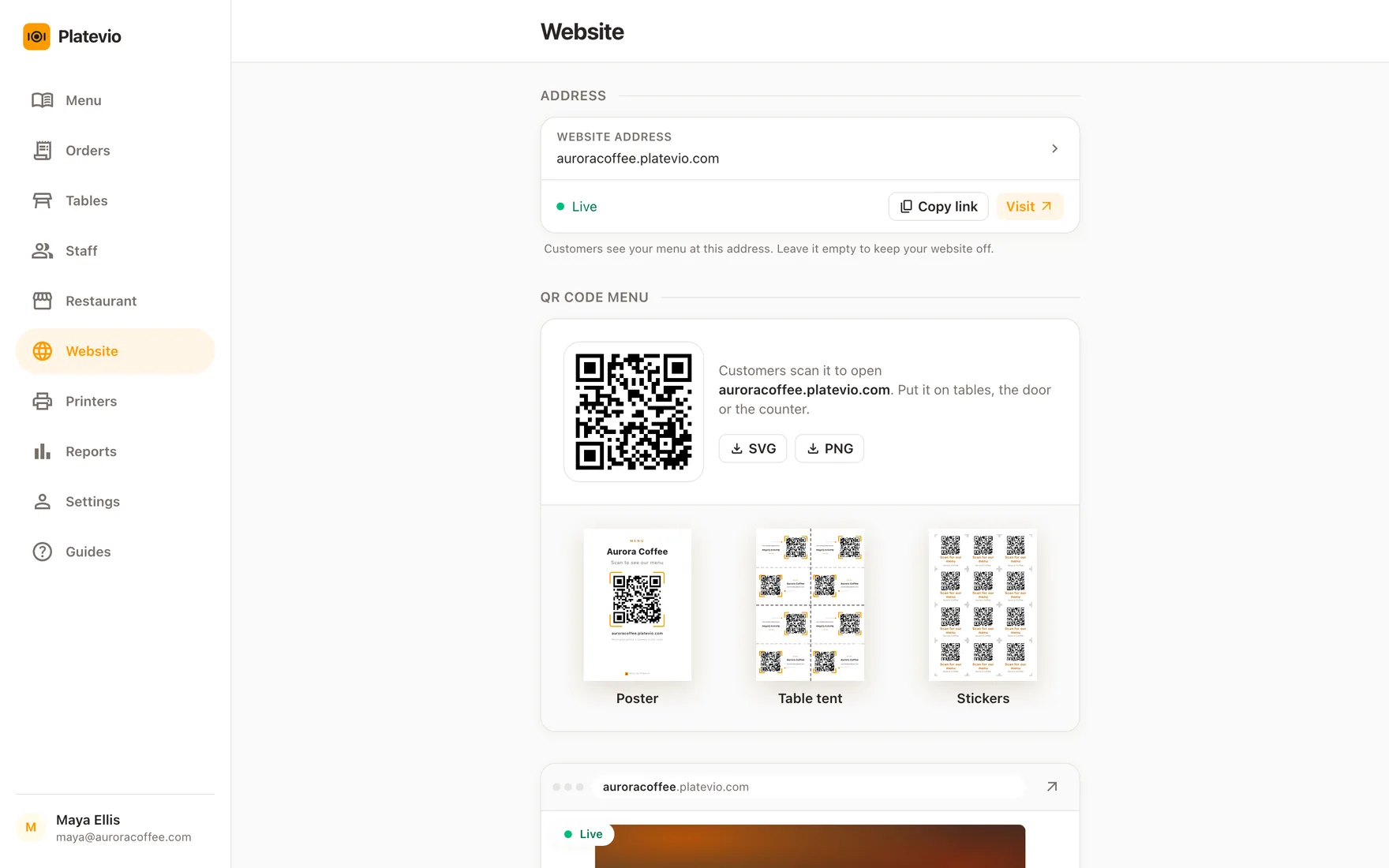
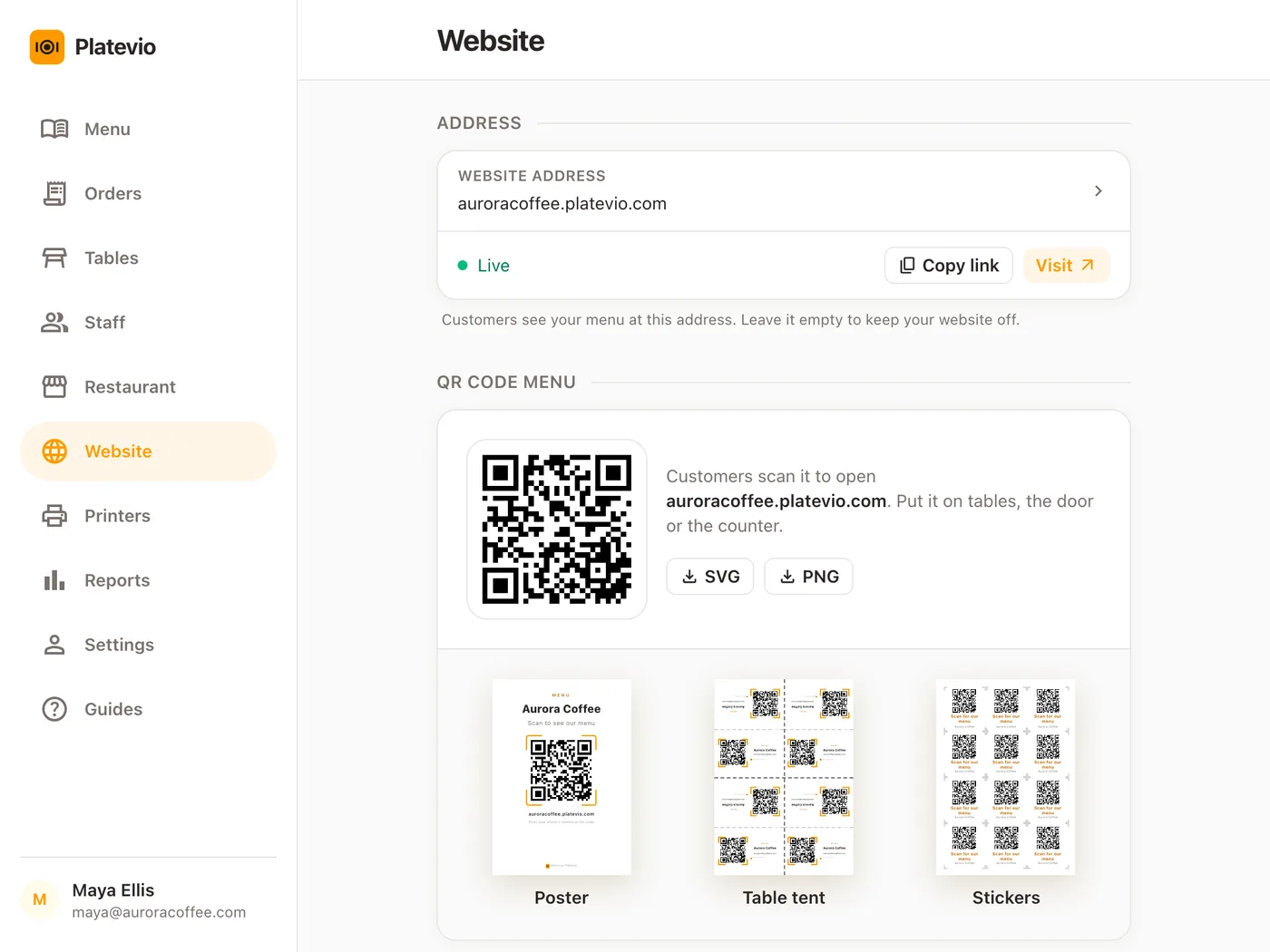
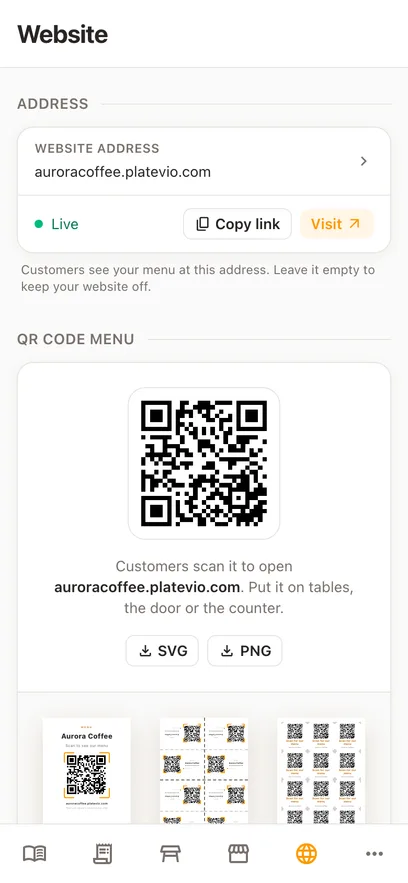
Once your website has an address, the app draws its QR code. Download it as SVG or PNG for your own designs, or print one of the ready sheets.
-
Ready to print
A Poster for a wall, door or window, Table tents that fold to stand on a table, and a sheet of Stickers with cut marks. Each is a PDF in A4 or Letter.
-
The whole menu, as you wrote it
Every category, every item and every extra with its price, in your own words, with the categories arranged the way you arranged them. Photos you added to an item appear beside it.
-
Live, not a copy
The code opens the same menu the restaurant works from. Change a dish and the printed code shows the change — there is nothing to reprint.
From the menu in the app to a code on every table
The QR code opens a view of what you already keep in Platevio, so setting it up is short.
-
09:30
Build the menu once
Categories, items, extras, photos and prices, entered in Platevio the way the restaurant already uses them at the counter and in the kitchen.
-
09:40
Choose your address
Open the Website page in the app, pick the word before .platevio.com and turn the website on. Your QR code appears beneath it.
-
09:45
Print the code
Download the Poster for the door, Table tents for the tables and Stickers for the counter, print them on your own printer, and put them where guests sit and queue.
-
17:50
Change a price before dinner
Edit the dish in Platevio and the menu behind the code shows the new price straight away. The guest who scans at six sees what the kitchen is cooking at six.
What your QR code menu gives you
One code to print, and one page behind it laid out like a printed menu, built for a phone held in one hand.
-
Poster, Table tent and Stickers
Three printable sheets carry your code and your restaurant’s name, with a line telling guests to scan it. The Table tent sheet cuts into four; Stickers come six large or 24 small to a page.
-
SVG and PNG downloads
Take the bare code into your own printed menu, flyer or window vinyl. SVG stays sharp at any size.
-
Photos beside the dishes
An item with a photo in Platevio shows it on the menu too, so a guest can see the dish before choosing it.
-
Extras and their prices
Each extra is listed under its item with what it adds to the bill, so nobody is surprised when the cheese costs more.
-
The guest’s language
Headings, buttons and labels appear in the reader’s language, with a picker at the foot of the page. Your dish names and descriptions stay exactly as you wrote them.
-
One link beyond the table
The address the code opens is a link too: put it in your Instagram bio, your Google Business profile and WhatsApp replies, and search engines can find your dishes by name.
Questions about the QR code menu
- How do I make a QR code menu for my restaurant?
- Build your menu in Platevio, then open the Website page, choose your address and turn the website on. The QR code appears on the same page, ready to download or print. There is no website to design and no QR generator to sign up for.
- Is the QR code menu free?
- Yes. The website, the QR code and the printable sheets come with Platevio, which is free, with no card to enter.
- Do I have to reprint the QR code when the menu changes?
- No. The code opens your address, and the address always shows the menu as it is in Platevio now. A new dish, a changed price or a removed extra shows up the next time someone scans.
- What can I print the QR code on?
- The app makes three sheets: a Poster for a wall, door or window, Table tents that fold to stand on a table, and Stickers with cut marks, six large or 24 small to a page. Print them in A4 or Letter on your own printer, on plain paper, card or sticker paper. Or download the code as SVG or PNG and add it to your own designs.
- Do guests need an app to scan it?
- No. Any phone camera reads a QR code, and the menu opens in the browser the phone already has.
- Can guests read the menu in their own language?
- The page around your menu — headings, buttons and labels — appears in the guest’s language, and they can switch it at the foot of the page. The dishes themselves are shown in your own words.
- What address does my QR code open?
- A word you choose followed by .platevio.com, such as yourname.platevio.com. You can change the word later, but links already shared and codes already printed for the old address stop working.
Open your restaurant tonight
It takes a minute: your restaurant, your first menu, and you are taking orders.