Point of sale system for restaurants, cafés and bars
Take orders on the phones, tablets and computers you already have, and send them straight to the kitchen. No hardware to buy.
Why Platevio
No hardware to buy.
Platevio runs on the phones, tablets and computers you already own. Keep your cash register, keep your card reader. There is no terminal to lease and no locked-down tablet to buy from us.
-
Free, on every device
Free to use on every phone, tablet and screen in the venue. No fee per device, screen or user.
-
Prints where you need it
Receipts and kitchen tickets over WiFi, Ethernet, USB or Bluetooth, to ESC/POS printers.
-
Every device in step
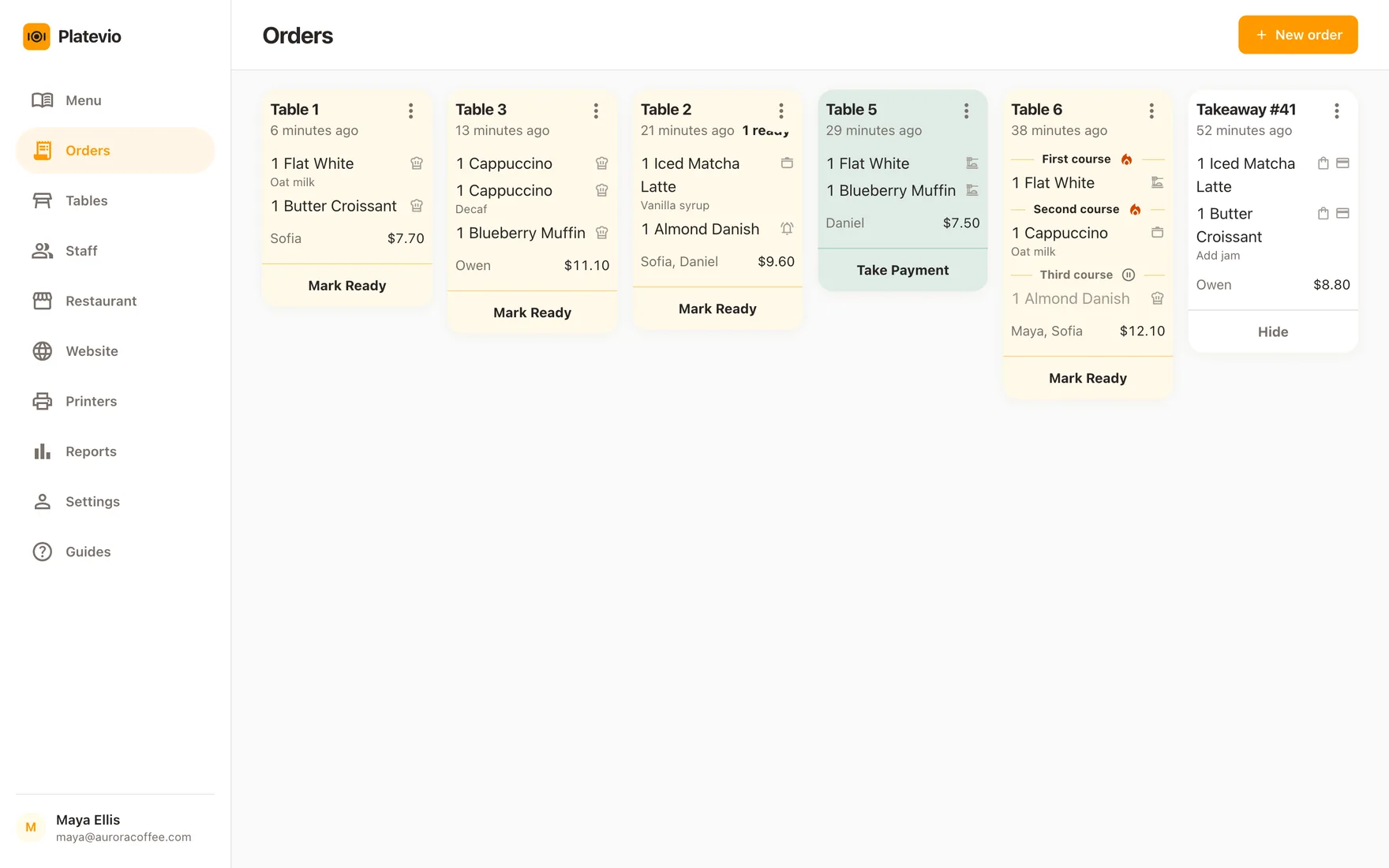
An order taken on one phone is on the kitchen screen and every other device the moment it is sent.
-
In your language
26 languages, and each person on the team works in their own.
- 01
Create your restaurant
Sign up in the browser or the app and name your restaurant.
- 02
Build your menu
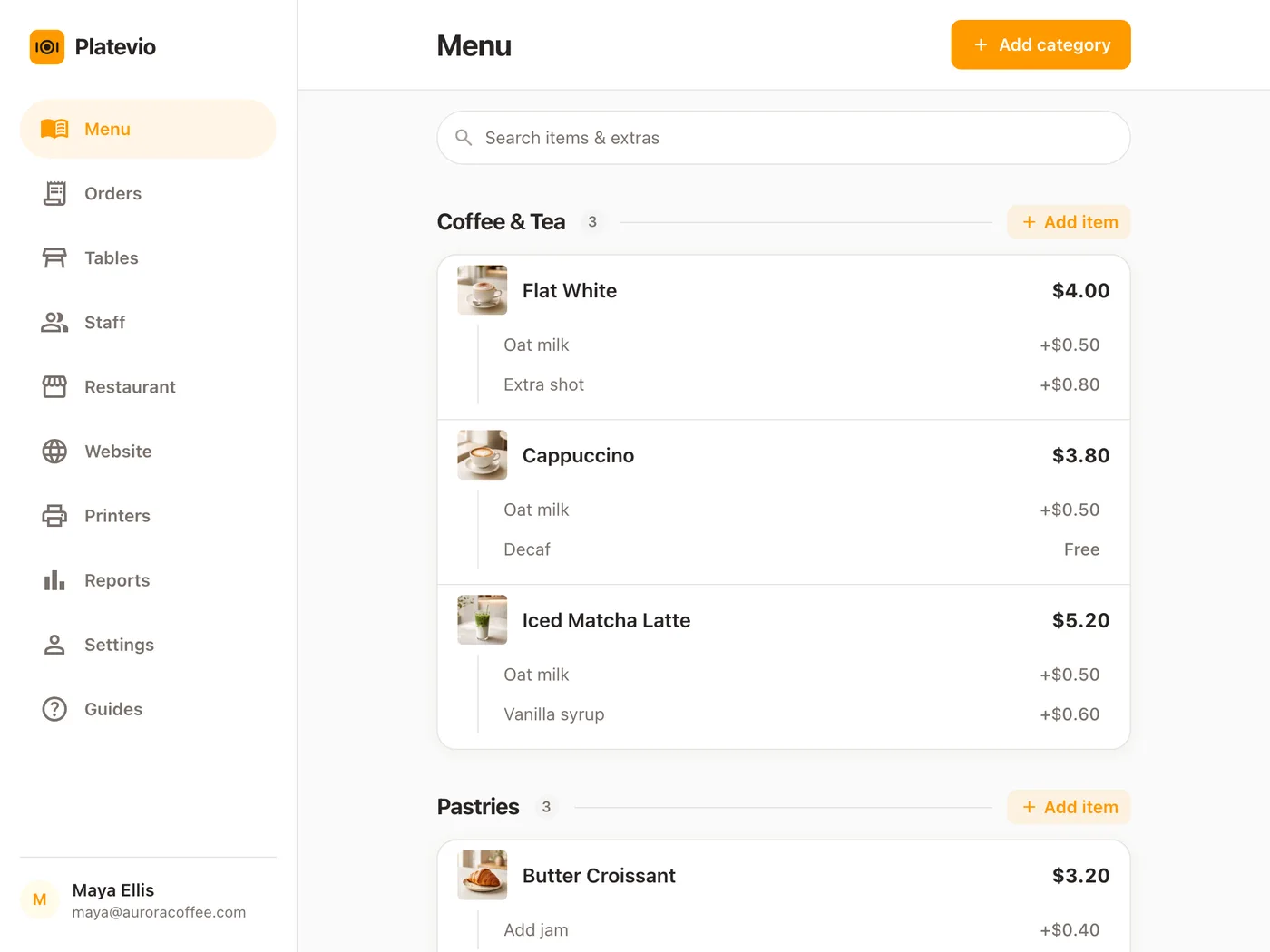
Add categories, items, prices and photos. Put extras on any item — sizes, sides, add-ons — each with its own price.
- 03
Bring in your team and your printer
Invite staff by email and give each one a role. Add a printer on WiFi, USB or Bluetooth.
- 04
Take orders
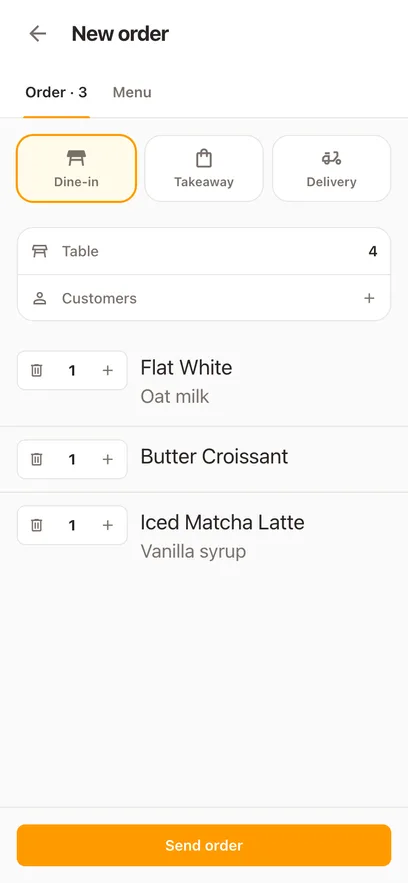
Take an order on any device. The kitchen sees it at once, and the bill is a tap away.
Platevio products
Start with the point of sale and add the rest as you need it, all in the same account.
-
Restaurant POS
The point of sale for the whole service: orders at the table, tickets to the kitchen, the bill and the receipt, on the devices you already have.
- Table, takeaway and delivery orders
- Kitchen display and printed tickets
- Split bills, discounts and daily reports
-
Cloud POS
Sign in from any phone, tablet or computer and pick up where the last device left off. No server in the back office, nothing to back up.
- In any browser, or the app
- Live on every device at once
- Your data is safe if a tablet breaks
-
QR Code Menu
Put your menu online at your own address, with a QR code to print for every table. Guests scan it and see every dish with its photo, extras and price as you wrote it, with the page’s headings and buttons in their own language, and it changes the moment you edit the menu.
- Your own name.platevio.com address
- Poster, table tents and stickers to print
- Photos, extras and prices
One app for the whole service
Orders, the kitchen, the printers, the floor, the menu, the team and the numbers, on the phones and tablets you already own. All of it is on the free plan: 100 orders a month, no card, and no fee per device, screen or user.
-
Kitchen Display
A free kitchen display system that runs in a browser on a tablet you already own. Every open check lands on one board as the floor sends it, every dish carries its own status, and there is no charge per screen.
-
Order Taking
A free restaurant order taking app: waiters take orders on their own phones with extras, notes and courses, see what is ready at the pass and split the check by item.
-
Kitchen Printer
Tickets print themselves when the order is sent, and each kitchen printer gets only its own dishes. WiFi, Ethernet, USB or Bluetooth; ESC/POS. Free.
-
Table Management
Free restaurant table management software. Draw your rooms and tables as they are, then watch each table’s state and the plates waiting at the pass, live.
-
Reporting
Free restaurant reporting software: sales, orders, what is still unpaid and payments by method for any day, week or month — and every check behind the numbers, one tap away.
-
Menu Management
Free restaurant menu management software that runs in a browser. Change a price or mark a dish out and every phone on the floor has it at once. No per-device fee.
-
Staff Management
Invite the whole team free. Each person signs in on their own phone with a Role that fits the job, and their name is on every order. No fee per user, seat or device.
On every device you own
Install the app on Android, iPhone, iPad, Mac or Windows — it is what prints to the printer on the counter. Or open Platevio in any browser.
All downloads-
Android This device
Phones and tablets

-
iPhone & iPad This device
Phones and tablets

-
Mac This device
Laptops and desktops

-
Windows This device
Laptops and desktops
-
Browser
Any phone, tablet or computer
A POS system for every kind of restaurant, café and bar
Frequently asked questions
The things people ask before their first service.
How much does Platevio cost?
Nothing to start. Free has every feature and 100 orders per month, with no card and no fee per device, screen or user. Plans with more orders are billed monthly or yearly. See pricing →
Do I need special hardware?
No. Platevio runs on the phones, tablets and computers you already have. You record each payment as cash or card, so it works beside the card reader and cash register you use now.
Which printers does Platevio work with?
Thermal receipt and kitchen printers that speak ESC/POS, Epson’s included, connected over WiFi, Ethernet, USB or Bluetooth. Printing runs from the Platevio app on Android, iPhone, iPad, Mac and Windows. An iPhone or iPad prints over WiFi or Ethernet. Kitchen printers →
Which printer should I buy?
A WiFi or Ethernet printer if you can: every device with the Platevio app reaches it over the network. USB comes next — it prints from the one device it is plugged into. Bluetooth comes last — it prints from the one device it is paired with. An 80 mm thermal printer that speaks ESC/POS is the safe choice. Kitchen printers →
How do I set up a Bluetooth printer?
Pair the printer with your Android phone, Mac or Windows computer in its Bluetooth settings first. Then in Platevio open Printers, tap Add printer, choose Bluetooth, pick the printer from the paired list and save.
How do I split a bill?
Open the order and tap Take Payment, then Split the bill. Tick the items one guest had, choose cash or card and take their payment. Repeat for the next guest until the bill is settled.
How do I give a discount?
On the payment screen, tap Discount. Choose a percentage or a fixed amount, name it if you like — “Staff meal”, “Happy hour” — and apply it to the order.
How do I add extras to a menu item?
Open the item in your menu and tap Add extra. Give it a name and a price, or leave the price empty for a free extra. Waiters see the item’s extras when they add it to an order. Menu management →
How do I invite a staff member?
Open Staff and tap Invite staff. Enter their email, choose a role — waiter, cook, cashier, manager and more — and send. Once they sign in, they are on your team. Staff management →
How do orders stay in sync across devices?
Every device signed in to your restaurant sees the same orders, updated live. An order sent from a waiter’s phone appears on the kitchen screen and the counter tablet at once, with nothing to refresh.
Does it work without internet?
Platevio needs a connection to take and send orders. If the connection drops, a bar at the top says so, and you can still see the orders, tables and menu already on screen. When it comes back, everything refreshes on its own.
Which devices does it run on?
Any modern browser on a phone, tablet or computer, and the Platevio app for Android, iPhone, iPad, Mac and Windows. Download →
From the blog
All articles-
Receipt printer not printing? Connect, test and fix it
Why a receipt printer stops printing and how to fix it: lights and self-test, Bluetooth pairing and drops, the IP address, blank or garbled print, paper errors.
-
QR menus: where to put them, what they cost, are they faster
Where to place QR menu codes, how big to print them, what a QR menu really costs, whether it speeds up service, and the UK and US rules to check first.
-
Expo in a restaurant: keeping orders straight in the rush
What expo is, who should run it, how to set up the pass, and the calls, checks and habits that keep orders straight when the dinner rush hits a restaurant.
Open your restaurant tonight
It takes a minute: your restaurant, your first menu, and you are taking orders.