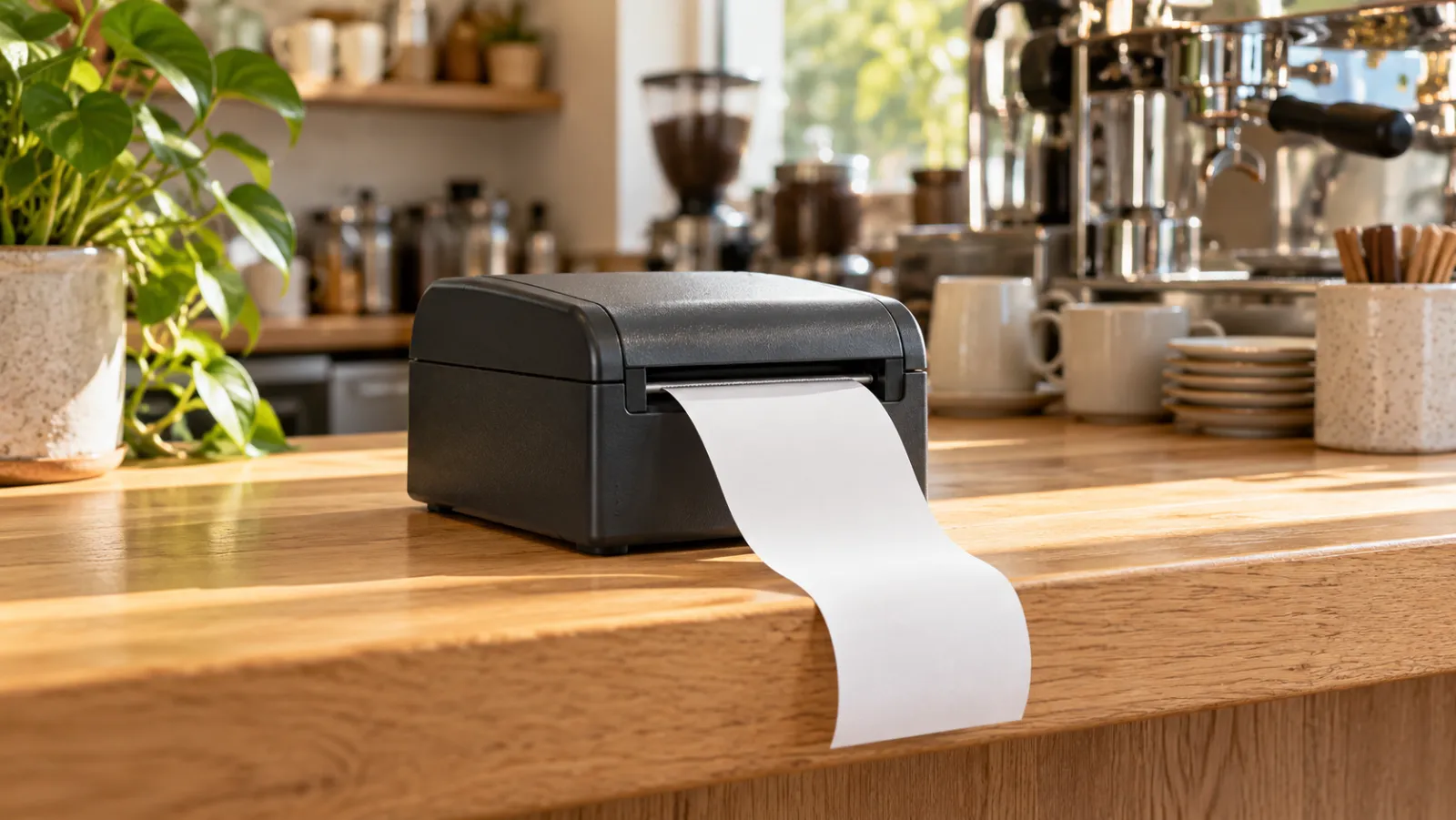
A thermal receipt printer prints by heating special paper, so it needs no ink and no ribbon. The only thing you ever buy for it again is paper. In a restaurant, bar or café the same kind of machine does two jobs: it prints the guest’s receipt at the counter and the ticket the cooks or bartenders work from.
The model matters less than people think. What decides whether yours works on a Friday night is how it connects: WiFi, Ethernet, USB or Bluetooth. The connection decides which devices can print to it, how far away it can sit, and what happens when something drops.
The short answer: Ethernet for any printer that stays in one place, WiFi where no cable can reach, USB for one till run from one computer, and Bluetooth for one phone or tablet, a food truck or a stall. The rest of this guide explains why, venue by venue.
What a thermal receipt printer is
A thermal receipt printer has a print head made of tiny heating elements. Heat-sensitive paper runs under it, and the paper turns dark wherever it is heated. It is why the printers are fast and quiet, and why a receipt left on a hot dashboard goes grey.
It goes by many names. In the US it is a receipt printer or POS printer. In Australia, a docket printer. In the UK you will also hear till printer or EPOS printer. A kitchen printer is usually the same kind of machine as the one at the counter.
Receipts and kitchen tickets
| Paper | Who reads it | What is on it |
|---|---|---|
| Receipt or bill | The guest | Venue name, items, prices, total |
| Kitchen ticket | Cooks at the pass | Table or order number, time, dishes, extras and notes, no prices |
| Bar ticket | The bartender | Drinks only |
ESC/POS, the language it speaks
A POS sends the printer commands, not a picture of the page. The most common command language is ESC/POS, which Epson created and describes as its own POS printer command system. Many other makers’ thermal printers accept it too. Before you buy, check that the spec sheet says ESC/POS and that your POS prints to ESC/POS printers.
You may also see impact (dot-matrix) kitchen printers, which strike an ink ribbon onto plain paper. Some kitchens choose them for very hot lines, where heat can darken thermal paper. This guide is about thermal.
The four connections at a glance
The single most useful question is “who can print to it?” Everything else follows.
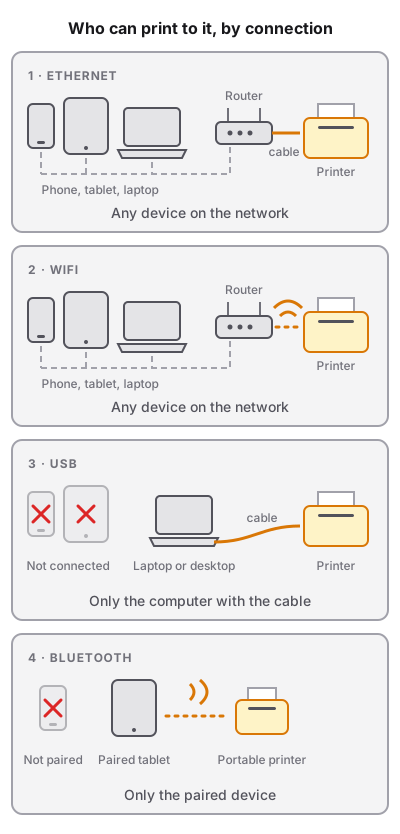
| Connection | Who can print to it | Pros | Cons | Best for |
|---|---|---|---|---|
| Ethernet | Any device on the same network | The most stable. No radio, no pairing, nothing to drop | Needs a cable to the router or a network switch | Kitchen, bar and counter printers that never move |
| WiFi | Any device on the same network | No cable to the router. Sits anywhere with good signal | Can drop in a busy or metal-heavy kitchen; needs a fixed address | Stations where no cable can run |
| USB | The one computer or device its cable is plugged into | Plug in and print. No network to fail | Tied to one machine; short cable; that machine must stay on | One till run from one laptop or desktop |
| Bluetooth | The one device it is paired with | No network at all. Battery portables exist | Short, wall-sensitive range; one paired device; iPhone and iPad support varies | Food trucks, stalls, pop-ups, a single tablet till |
Two notes on the table. First, the exact ports depend on the model’s version: one entry model, the Epson TM-T20III, ships as a USB and serial version or a USB and Ethernet version, with WiFi as an optional add-on unit. Read the exact part number, not the family name. Second, some POS software lets the computer holding a USB or Bluetooth printer print on behalf of the other devices. That is a feature of the software, not the printer, so ask your POS how it handles it.
WiFi and Ethernet: printers on the network
A network printer gets its own address on your venue’s network, like a laptop does. Any device on that network, the till, a waiter’s phone, a tablet at the bar, can send it a job directly. That is why network printers are the default once there is more than one station or device.
Ethernet: the one that does not drop
An Ethernet printer plugs into your router or a network switch with a cable. There is no radio signal for an oven door, a walk-in or a microwave to block, and nothing to re-pair after a power cut. If you can run a cable to the kitchen pass, do it.
The catch is the cable: you need a network port near the printer, which may mean a run through a wall or a small switch under the counter. Plan it before the fit-out.
WiFi: when a cable cannot reach
WiFi suits a bar across the room, a terrace station or a rented space where you cannot drill. It fails in predictable ways:
- Interference. Epson’s technical guide for one of its models says to keep the printer away from microwave ovens and to avoid wireless channels that neighbouring networks use. Test the signal at the exact spot the printer will sit.
- Wrong network. The printer and every device that prints to it must be on the same network. A guest WiFi often blocks devices from seeing each other, so never put the printer there.
- Cable and WiFi at once. On the same Epson model, plugging in a network cable turns WiFi off. Pick one.
Give the printer a fixed address
When your router reboots, it can hand the printer a new address, and every device still sending to the old one prints nothing.
- Print the printer’s self-test or network status page (usually by holding the feed button at power-on; your manual says how) to read its current IP address and its MAC address.
- In your router’s settings, find DHCP reservation (some routers call it static lease or address reservation) and reserve that address for that MAC address.
- Reboot the router once and print a test page from every device to prove it held.
Setting a static IP on the printer itself also works; a reservation keeps every address in one place.
USB and Bluetooth: printers tied to one device
USB and Bluetooth printers are not on the network. They belong to one machine, and that machine is the only one that can talk to them unless your software passes jobs along.
USB: one printer, one computer
Plug the printer into the till computer and it prints. No network to fail, nothing to configure on the printer. The limits:
- Only the machine with the cable can print to it. A waiter’s phone cannot reach it directly.
- That machine must stay on all shift. If the laptop sleeps or goes home, the printer is silent.
- Phones and tablets are hit and miss. Some Android devices can drive a USB printer with the right adapter and app. iPhones and iPads usually cannot, so do not plan an Apple tablet till around a USB printer.
Bluetooth: one printer, one paired device
A Bluetooth printer pairs with one device, a phone, tablet or computer, and prints whatever that device sends. No router, no cable, no IP address, which makes it the usual answer for food trucks, stalls and pop-ups. The limits:
- Range is short and uneven. The Bluetooth standards body says range varies from under a metre to over a kilometre depending on the radio, and that walls, glass and metal weaken the signal. Keep the printer and its device in sight of each other.
- It belongs to the device it is paired with. If the counter tablet is paired, the waiter’s phone cannot print to it directly.
- iPhone and iPad are the common trap. Apple controls which Bluetooth accessories apps can talk to, and some kinds of Bluetooth accessory need Apple’s MFi certification. Plenty of cheap Bluetooth printers work with Android and Windows and not with an iPad. If your till is an iPad, check that the listing names iOS or iPad and that your POS lists Bluetooth for iPad, or choose a network printer instead.
- Portables are usually 58 mm. Fine for a short ticket, cramped for a long order with notes.
Which connection suits your venue
Begin with your room, not the printer. Count the stations that need paper and the devices that take orders, then pick a connection per station.
Counter café
One till, one counter, maybe a ticket for the barista.
- Pick: USB if the till is a laptop or desktop that stays on all day. Ethernet if the till is a tablet, or if you may add a second ordering device later.
- Why: both are cable-simple, and a network printer lets a second iPad print with no change.
- Watch: put the printer where the barista can reach the paper without crossing the queue.
Still planning the shop? See how to open a coffee shop.
Food truck or market stall
One tablet or phone, no reliable network, power from a battery or generator.
- Pick: Bluetooth paired to the ordering tablet or phone. USB if you run the truck from a laptop.
- Why: neither needs a router, and a battery portable keeps printing if the generator trips.
- Watch: heat and vibration. Mount the printer away from the griddle, keep spare rolls sealed, and check the printer supports your tablet (iPad or Android).
The rest of the setup is in how to start a food truck.
Bar
Drinks taken at the bar and on the floor, along a bar where cables are awkward.
- Pick: Ethernet behind the bar if there is a network port nearby. WiFi if not.
- Why: a network printer lets every bartender’s device and any floor device print to it.
- Watch: spills. Keep the paper exit away from drip trays and the ice well.
More on the room itself in how to open a bar.
Restaurant with a kitchen and a bar
A counter for bills, a kitchen pass, a bar, and waiters ordering on phones or tablets.
- Pick: one printer per station, all on the network. Ethernet at the kitchen pass and the counter. Ethernet or WiFi at the bar.
- Why: every waiter’s device can reach every printer, and no single tablet going flat stops the kitchen.
- Watch: routing. The kitchen printer should get food only and the bar printer drinks only. That is set in your POS by menu category, so build your menu categories around who makes it, not how it reads on the menu.
One printer per station, or one for everything?
A small café with the coffee machine beside the till can run on one printer for receipts and tickets. Once the kitchen is a separate room, or there is a bar, give each station its own printer. Walking tickets across the room is how orders get lost, and a shared printer buries the bartender’s drinks under the kitchen’s food.
Specs that matter
These are the lines worth reading. The figures come from one common entry model, the Epson TM-T20III, as an example of how to read a sheet, not a recommendation.
Paper width: 80 mm or 58 mm
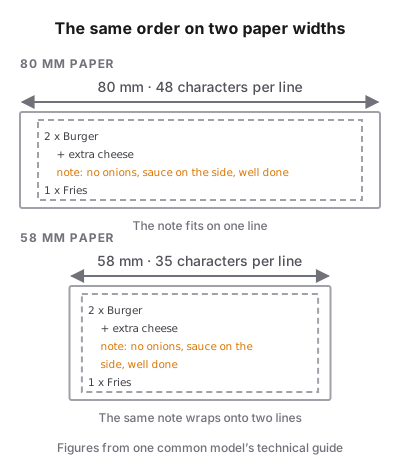
| 80 mm paper | 58 mm paper | |
|---|---|---|
| Printable width | 72 mm | 52.5 mm |
| Characters per line (standard font) | 48 | 35 |
| Characters per line (small font) | 64 | 46 |
| Usual use | Counter receipts, kitchen and bar tickets | Portables, short bar tickets, small stalls |
Source: Epson TM-T20III Technical Reference Guide.
Buy 80 mm for any fixed station. A kitchen ticket with extras and notes gets long and hard to scan on 58 mm. One trap: on that Epson model, once the printer is switched from 80 mm to 58 mm paper, it cannot be switched back, because the narrower paper wears the head and cutter unevenly. Decide the width before you load the first roll.
Auto-cutter
An auto-cutter cuts the ticket when it finishes. In a kitchen it is not optional: cooks should not be tearing paper with wet hands. The Epson example’s cutter is rated at 1.5 million cuts, and its print mechanism at 15 million lines.
Speed
The example model prints up to 250 mm per second, so a ticket takes well under a second. Speed matters more when comparing small portables.
Buzzer for the kitchen
A kitchen printer that prints silently next to a loud extractor fan gets ignored. Some printers have a built-in beeper; others take an external buzzer. On the Epson example, the optional buzzer plugs into the same port as a cash drawer, so the printer cannot run both. Fine for a kitchen printer, not for a counter printer that also opens the drawer.
Heat, steam and placement
The example model is rated to work between 5 and 45 °C. Right above a grill or beside a fryer can be hotter than that, and the heat also darkens the paper. Put the kitchen printer at the pass, on a shelf or wall bracket, away from steam, grease and the dish pit. Check there is a power socket there.
Thermal paper: sizes, storage and BPA
- Size. Rolls are sold by width and diameter. Check both against the printer: the Epson example takes rolls up to 83 mm in diameter. A bigger roll means fewer changes mid-service.
- Storage. Thermal paper reacts to heat and light, so keep spare rolls in a cool, dark, dry place, not on the shelf above the coffee machine.
- Fading. Thermal prints fade over time. If you need to keep a receipt for your records, photograph or scan it rather than relying on the paper.
- BPA. In the EU, thermal paper containing bisphenol A at 0.02% by weight or more has been banned from the market since 2 January 2020 (Regulation (EU) 2016/2235, an amendment to REACH). The same text is kept in UK law. Elsewhere, rules differ, so ask your supplier what developer its paper uses if it matters to you or your staff.
What a receipt printer costs
US prices in USD from retailer listings seen in October 2026. They move often, and UK, Canadian and Australian prices differ, so treat them as tiers, not a quote.
| Tier | What you get | US price seen (2026) |
|---|---|---|
| Generic Bluetooth or USB thermal printer | Unbranded, often 58 mm, sometimes no cutter | about $27–$119 |
| Entry branded 80 mm desktop | Example: Epson TM-T20III, USB plus Ethernet | $222–$456 across retailers |
| Mid-range 80 mm desktop | Example: Epson TM-m30III | $361 with USB and Ethernet; $320–$373 with Bluetooth and WiFi added |
| Impact kitchen printer | Ribbon and plain paper | most $150–$350 |
Sources: Walmart, CDW and POSGuys listings; impact range from Merchant Maverick.
Then add the rest, per station:
- Paper rolls, ongoing.
- A network cable, a switch or a wall bracket if needed.
- An external buzzer for the kitchen, if the printer lacks one.
Say you run a restaurant with a counter, a kitchen and a bar, and you buy three entry branded 80 mm Ethernet printers at around $280 each. That is about $840 before paper and cabling. The cheap generic tier is tempting for a pop-up, but check the cutter, the width and the ESC/POS line before you save the money.
Buying checklist
- Connection. Does it have the connection this station needs (see the venue picks above), in the exact version you are ordering?
- ESC/POS. Does the spec sheet say ESC/POS, and does your POS say it prints to ESC/POS printers?
- iPad or iPhone. If your devices are Apple, does the printer support them over the connection you chose? Never plan on USB from an iPhone.
- Paper width. 80 mm for fixed stations; 58 mm only for portables and short tickets.
- Auto-cutter. Yes for every kitchen and counter printer.
- Buzzer. Built in or an add-on for the kitchen printer.
- Placement. A spot away from heat, steam, grease and spills, with a power socket and, for Ethernet, a network port.
- Fixed address. For a network printer, a DHCP reservation on the router before service.
- Test. Print a test page from every device that will use it, then reboot the router and do it again.
- Spares. Two rolls at each station, and the supplier’s part number written down.
Planning the whole room? See the commercial kitchen equipment list.