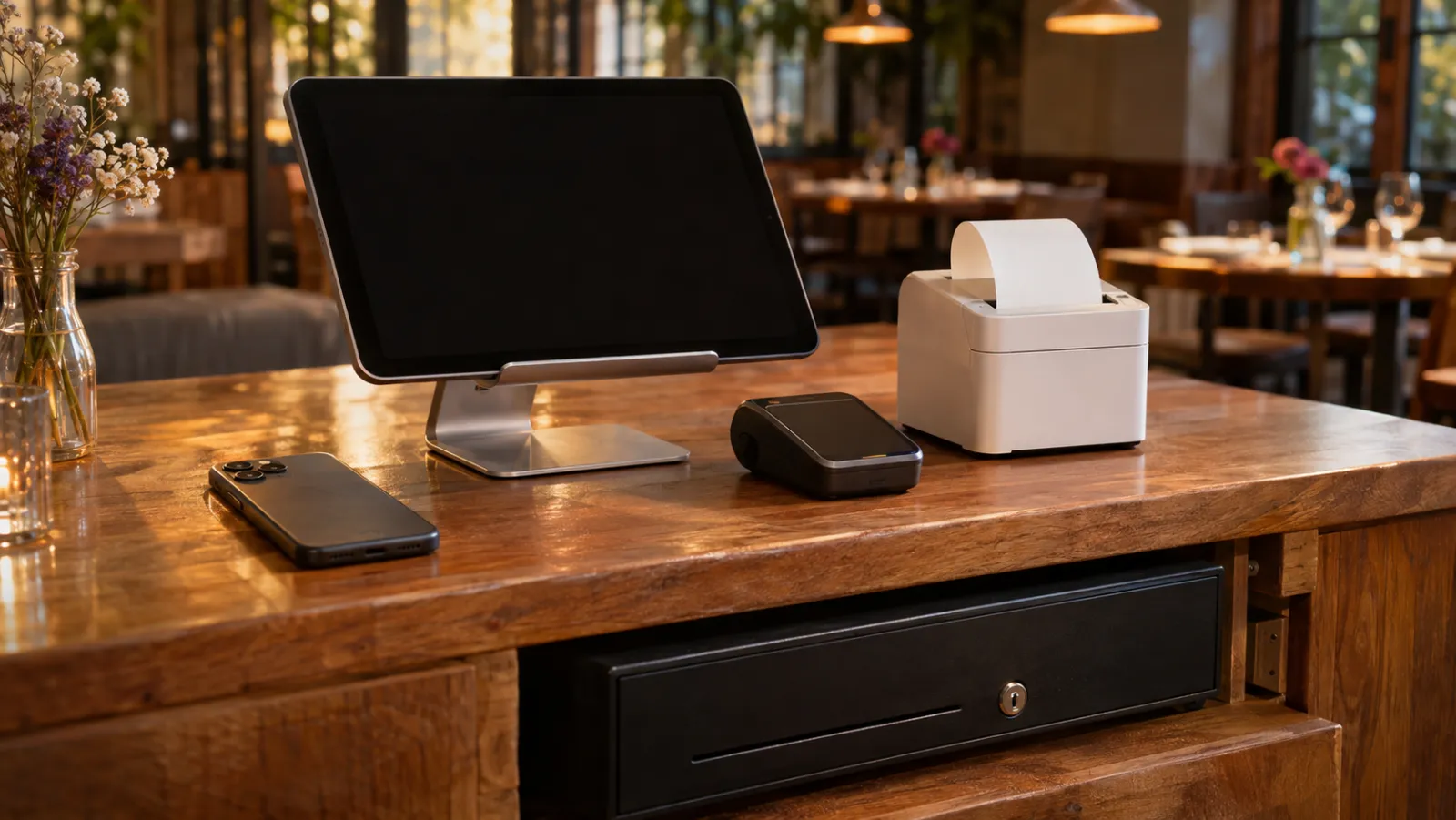
POS hardware is everything physical your point of sale runs on or talks to: the screen orders are taken on, the printer or screen in the kitchen, the card reader, the receipt printer, the cash drawer and the network that links them. The software decides what the system does; the hardware decides where, and what it costs to leave.
Most restaurants need far less of it than a vendor’s starter kit suggests. The minimum is three things: one device that runs your POS, a way to get orders to the kitchen, and a way to take cards, if you take cards. A receipt printer, a cash drawer, handhelds and a second screen are added only when your service asks for them.
The expensive mistake is not buying too much. It is buying hardware that works with only one software company or one card processor, because that hardware has to be thrown out the day you switch. This guide goes piece by piece: what each one does, when you can skip it, and what it cost in the US in November 2026.
What counts as POS hardware
A POS system is software plus the devices it runs on. If you want the software side first, read what a POS system is. The hardware falls into four groups:
| Group | Pieces | Job |
|---|---|---|
| Order devices | Countertop terminal, tablet, laptop, handheld, phone | Where staff enter orders and settle bills |
| Kitchen | Kitchen printer or kitchen screen | Gets each order to the cooks and the bar |
| Payment and cash | Card reader or terminal, receipt printer, cash drawer | Takes the money and hands the guest proof |
| Network | Router, cables, sometimes a switch or a backup connection | Links every device to the others and to the internet |
Two questions decide almost every buying choice in this guide:
- Whose hardware is it? A tablet from an electronics store works with many POS systems. A proprietary terminal works with its maker’s software, and often only with its maker’s card processing.
- What does it talk to? A printer has to speak a language your POS can send. A card reader has to be supported by your processor. A tablet has to run your POS’s app or browser version.
The minimum setup, and what each piece is for
Start with the job, not the catalog. This is the whole list for a typical restaurant, café or bar, with the honest answer to “do I need it?”
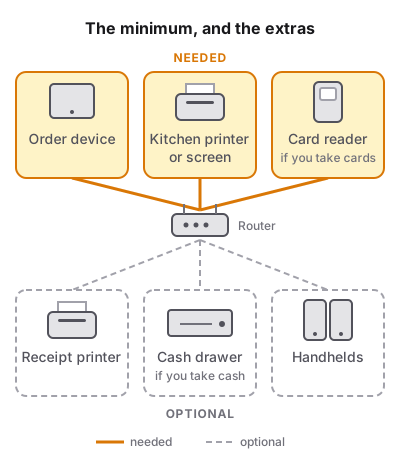
| Piece | What it does | Do you need it? | You can skip it when |
|---|---|---|---|
| Order device | Takes orders, holds open checks, settles bills | Yes, at least one | Never |
| Kitchen printer or kitchen screen | Shows the cooks what to make | Yes, one or the other, once the kitchen is out of earshot | The person taking the order also makes it, as at a small coffee counter |
| Card reader or terminal | Takes card and contactless payments | Yes, if you take cards | You are cash only, or you already have one that works on its own |
| Receipt printer | Prints the guest’s bill or receipt | Usually | Your guests rarely ask and local rules do not require paper |
| Cash drawer | Holds cash safely at the counter | Only if you take cash | You are card only |
| Router and a reliable connection | Links the devices | Yes, for any cloud POS | Never, if your POS is in the cloud |
| Handhelds | Take orders at the table | No | Counter service, or a small floor where the station is a few steps away |
| Customer-facing display, kiosk, scanner, scale | Extras for specific service styles | No | Almost always (see what you can skip) |
Order devices: terminal, tablet, laptop or phone
The order device is the one piece every POS needs, and the one where the gap between options is widest.
Countertop terminal
A dedicated terminal is a touchscreen built for a counter, sometimes with the card reader and the receipt printer built in or bolted on. A POS vendor’s own terminal usually runs only that vendor’s software. An open all-in-one such as Elo’s 15.6-inch I-Series 4, which runs Android, listed between $1,109 and $1,313 at US retailers in November 2026.
- Good at: sturdy, made for a counter.
- Watch out for: a vendor’s own terminal usually runs only its maker’s software, so it is a paperweight if you leave.
Tablet
A tablet on a stand is the usual order device in a small restaurant. Apple’s base 11-inch iPad listed at $449 (Wi-Fi, 128 GB) on Apple’s US store in November 2026; Samsung’s Galaxy Tab A11+ listed at $299.99 for the Wi-Fi 128 GB model.
- Good at: cheap next to a terminal, replaceable from any electronics store the same day, and usable by many POS systems.
- Watch out for: consumer tablets are not built for a hot room. Apple rates the base iPad to work between 0 and 35 °C (32 to 95 °F), which a spot next to a fryer can exceed. A stand or enclosure, a charger that stays plugged in and a case are part of the cost: Heckler’s WindFall stand for the 10th-generation iPad, for example, listed at $133.06 at Barcode Hero.
- Check before buying: does your POS run on that tablet’s operating system? Some systems run only on iPad, some only on Android, some in any browser.
Laptop or desktop
A laptop works for counter service, menu editing and reports. A laptop that sleeps or goes home at night takes anything plugged into it, such as a USB printer, with it.
Handhelds: a dedicated device or the waiter’s phone
A handheld lets a server take the order at the table and send it to the kitchen before walking away. It saves trips to a fixed station, which matters on a large floor, a terrace or a patio, and matters much less in a 30-seat room.
There are two ways to get one:
| Dedicated handheld | Staff phones | |
|---|---|---|
| Example cost (US, 2026) | Rugged Zebra TC22, about $1,400; Galaxy A17 5G phone, $269.99 | Nothing, if staff agree to use their own |
| Durability | Built for drops and spills | Whatever each person carries |
| Battery | Spare devices can sit on chargers | Ends when the server’s own battery ends |
| Control | Owned and set up by you | Personal devices; set a clear policy |
| Works with | Any POS with an Android app; a POS vendor’s own handheld usually only that POS | Any POS with a phone app or browser version |
US retailer and Samsung list prices, November 2026.
If you use staff phones, write down the rules, including what happens if someone would rather not use their own, and keep one spare device charged for that person and for a dead battery.
Getting orders to the kitchen: printer or screen
The kitchen needs every order, with every change and note, the moment it is sent. You have two choices, and plenty of kitchens use both.
- A kitchen printer puts a paper ticket on the rail. It is cheap, easy to read in a glance, and keeps working as a record even if a screen is knocked off the wall. The machine is usually a thermal printer, the same kind as the one at the counter.
- A kitchen screen shows orders without paper and lets cooks mark dishes done. The screen can be a dedicated display or an ordinary tablet on a wall mount.
What goes on the ticket, and paper against a screen, is covered in kitchen order tickets; choosing the printer by connection, in thermal receipt printers. Two hardware points:
- Check what the kitchen screen software runs on. Some kitchen display apps run only on Android, some only on iPad, and some charge per screen per month. Ask before you assume a spare tablet will do.
- Count the stations, not the rooms. If the bar makes drinks and the kitchen makes food, each needs its own printer or screen, so drinks do not get buried under food tickets.
Taking payment: card reader, receipt printer and cash drawer
Card reader or terminal
The card reader is where your POS meets your card processor, and the processor charges a fee on every card sale. That fee, not the reader, is the big number. Most processors sell, rent or lend the reader themselves, so ask for its price, whether it is bought or rented, and whether it works with any other POS.
An integrated reader gets the amount from the POS, so nobody types it twice, but usually ties you to the processor your POS vendor chose. A standalone terminal takes the amount by hand and works beside any POS, so you can shop around for a lower rate.
If you already have a card terminal and a processing rate you are happy with, ask every POS you consider whether you can keep it.
Receipt printer
Most counters still print a receipt or a bill. The printer is often the same model as the kitchen printer. An entry branded 80 mm model such as the Epson TM-T20III listed between $222 and $456 across US retailers in October 2026; the connection choice (WiFi, Ethernet, USB or Bluetooth) matters more than the brand, and is covered in the thermal receipt printer guide.
Cash drawer
A cash drawer holds cash and opens in one of three ways:
| Type | How it opens | Watch out for |
|---|---|---|
| Printer-driven | A cable from the receipt printer; the POS tells the printer to “kick” the drawer at the end of a cash sale | Your POS must send that command, and the printer needs a drawer port |
| USB | A cable to the till device; the POS opens it directly | Needs a POS and device that support USB drawers |
| Manual | A key or a release lever | No automatic opening, so cash control depends on habit |
A printer-driven drawer is the most common. It plugs into a dedicated drawer port on the receipt printer; on the Epson TM-T20III, the optional kitchen buzzer uses that same port, so one printer cannot run both. As a price point, an APG Vasario 16-inch printer-driven drawer listed at $147.99 at POSGuys in November 2026, with the printer cable sold separately for $9.99 to $15.75.
Before buying a drawer, ask your POS which of the three it can open. If the answer is none, buy a manual drawer and count the cash at close.
The network: router, cables and a backup
A cloud POS needs a connection to send each order, so the network is hardware too, even if it was already on the wall when you moved in.
- Cable what does not move. A printer at the pass or behind the bar is more reliable on an Ethernet cable than on WiFi. Plan the cable runs before a fit-out, not after.
- Test WiFi where orders are taken. Walk the floor, the terrace and the back corner with a phone. Walk-ins, steel and thick walls block signal, and dead spots are where handhelds fail.
- Keep guests off the POS network. Give guest WiFi its own network.
- Have a plan for when it drops. Ask your POS exactly what still works without internet, and decide in advance whether you fall back to a phone hotspot, paper tickets or both. Keep a pad and pen at the pass either way.
What you can skip
Vendor bundles are built to cover every kind of business. Most of these extras are right for somebody, and wrong for a small restaurant, café or bar.
- Customer-facing display. A second screen facing the guest, showing items and totals. Useful at a busy counter where guests want to check the order; unnecessary at table service, where the bill does that job.
- Self-order kiosk. Useful for high-volume quick service with long queues. It is also one of the most expensive pieces in a catalog: a large touchscreen, a stand and often a card reader.
- Barcode scanner. Built for shops selling packaged goods. A restaurant selling dishes rarely needs one.
- Scale, label printer, order-status board. For a deli, a bakery selling by weight or a high-volume takeaway. Skip until you have that problem.
- A second countertop terminal. A tablet or a phone often does the job for far less.
- Handhelds for every server. Start with the stations you have, and add handhelds when you can see servers walking back and forth during the rush.
The test for every extra: what problem does it solve today, and what does adding it later cost? If later is cheap, wait.
What POS hardware costs
These are US prices in USD, from retailer and maker list prices checked in November 2026 unless marked. UK, Canadian and Australian prices differ, so treat these as tiers, not a quote.
| Piece | What it costs (US, 2026) |
|---|---|
| Tablet | Galaxy Tab A11+ $299.99; base iPad $449 |
| Countertop terminal, open all-in-one | Elo I-Series 4 15.6-inch $1,109–$1,313 |
| Handheld | Zebra TC22 $1,402.60–$1,415.77; budget Galaxy A17 5G phone $269.99 |
| Tablet stand | Heckler WindFall for iPad $133.06 |
| Card reader or terminal | Set by your processor; ask for the price and whether it is bought or rented |
| Receipt or kitchen printer, entry branded 80 mm | Epson TM-T20III $222–$456 across retailers (October 2026) |
| Cash drawer, printer-driven | APG Vasario 16-inch $147.99, plus a $9.99–$15.75 cable |
Three setups, priced
Worked examples from the table: new hardware only, no card reader, software, processing, paper or installation.
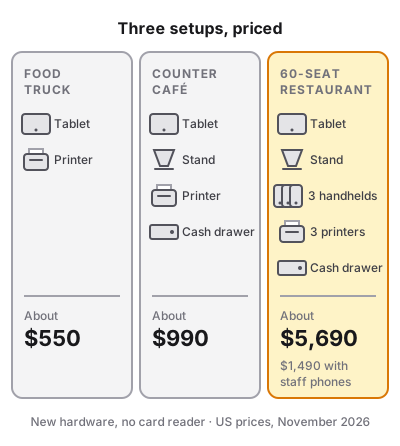
Food truck. One Android tablet ($299.99) and one entry thermal printer (say $250). About $550. With a tablet you already own, about $250.
Counter café. One iPad ($449) on a stand ($133.06), one receipt printer (say $250) and a printer-driven cash drawer with its cable ($147.99 + $9.99). About $990. Add a second printer for the barista or the kitchen and it passes $1,200.
60-seat restaurant with a bar. A counter iPad on a stand ($582.06), three rugged handhelds at about $1,400 ($4,200), three printers for the counter, kitchen and bar (say $750) and a cash drawer with its cable ($157.98). About $5,690. With three budget Android phones instead ($809.97), about $2,300; if servers use their own phones, about $1,490.
Buy, lease or “free hardware”
Some vendors offer hardware for $0 up front in exchange for a higher card processing rate. Run the numbers before you accept. Say the gap is 0.6 points: 2.5% when you pay for the hardware against 3.1% when you don’t (an illustration, not any one vendor’s price list).
Say your restaurant takes $30,000 a month on cards. A 0.6-point difference is $180 a month, or $2,160 a year. That is more than twice the counter café setup above, every year, and the higher rate keeps going for as long as you stay.
Leases work the same way: a small monthly fee can add up to more than the hardware costs, and some cannot be cancelled when you change POS. Ask for the total over the full term.
Buying checklist
Run through this before you order anything.
- Write down your service. Counter or tables? How many stations make food or drinks? Do you take cash, cards or both?
- Count the devices you already own. Tablets, phones and laptops that run your POS may cover the order devices on day one.
- Check compatibility first. Which operating systems does the POS run on? Which printers, card readers and cash drawers does it support, and over which connections?
- Ask whose hardware it is. Will each piece, card terminal included, still work if you change POS or processor?
- Price the “free” offers. Compare the processing rate with and without the bundled hardware over a year of your card sales.
- Plan the network. Cables for fixed printers, a WiFi test on the floor, a separate guest network, a fallback for an outage.
- Place for heat and spills. Tablets and printers away from fryers, grills, steam and the dish pit, with a power socket nearby.
- Buy spares. A charger, a cable and two paper rolls at each printer.
- Test before opening night. Take five orders on every device, print to every printer, open the drawer, and run a card through the reader.
Fitting out the whole room? The commercial kitchen equipment list covers everything behind the pass.